Experiment with embedding pics around text.
 Wow this was pretty easy. I edited the pic inline after importing it using the app. I simply set alignment to left and set the size to medium.
I am inserting dummy text to see what happens when we get to the bottom. I assume the text will resume its position on the left margin. I am inserting dummy text to see what happens when we get to the bottom. I assume the text will resume its position on the left margin.
I am inserting dummy text to see what happens when we get to the bottom. I assume the text will resume its position on the left margin. I am inserting dummy text to see what happens when we get to the bottom. I assume the text will resume its position on the left margin.
I am inserting dummy text to see what happens when we get to the bottom. I assume the text will resume its position on the left margin. I am inserting dummy text to see what happens when we get to the bottom. I assume the text will resume its position on the left margin. I am inserting dummy text to see what happens when we get to the bottom. I assume the text will resume its position on the left margin.
Looks very, very good. Now can I use the same pic with a different size, or is it pulling from the same copy as before?
Well lookee there, it uses a different instance of the picture. However, when I Center it like this, it doesn’t let me enter the text on either side. But if I told it to put the picture alignment left or right I am sure it would let me position the text accordingly. So what if I had say three pictures that I want to shrink to the size and put some text to the right of the three pictures teen group together? Let’s try that.
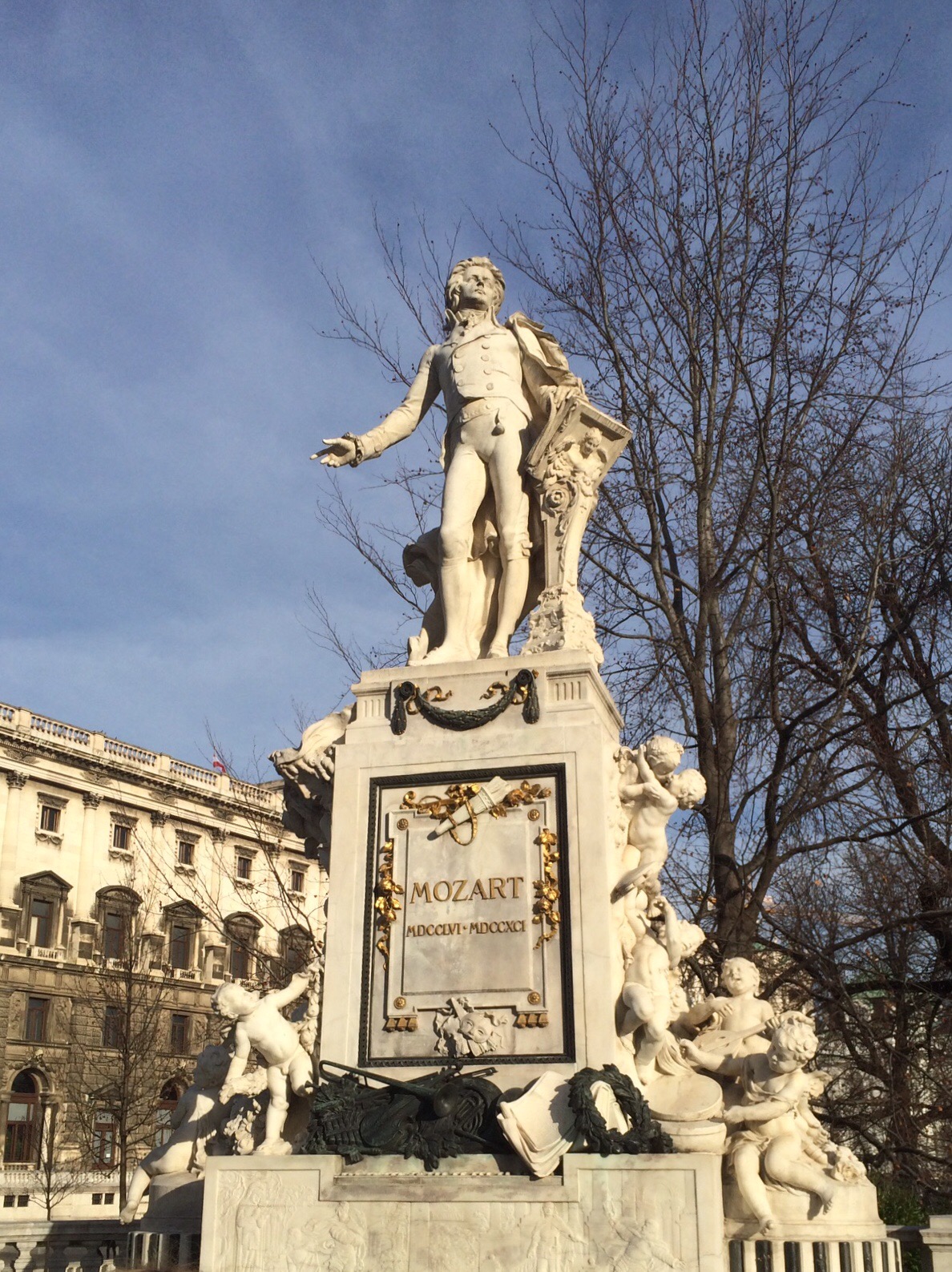

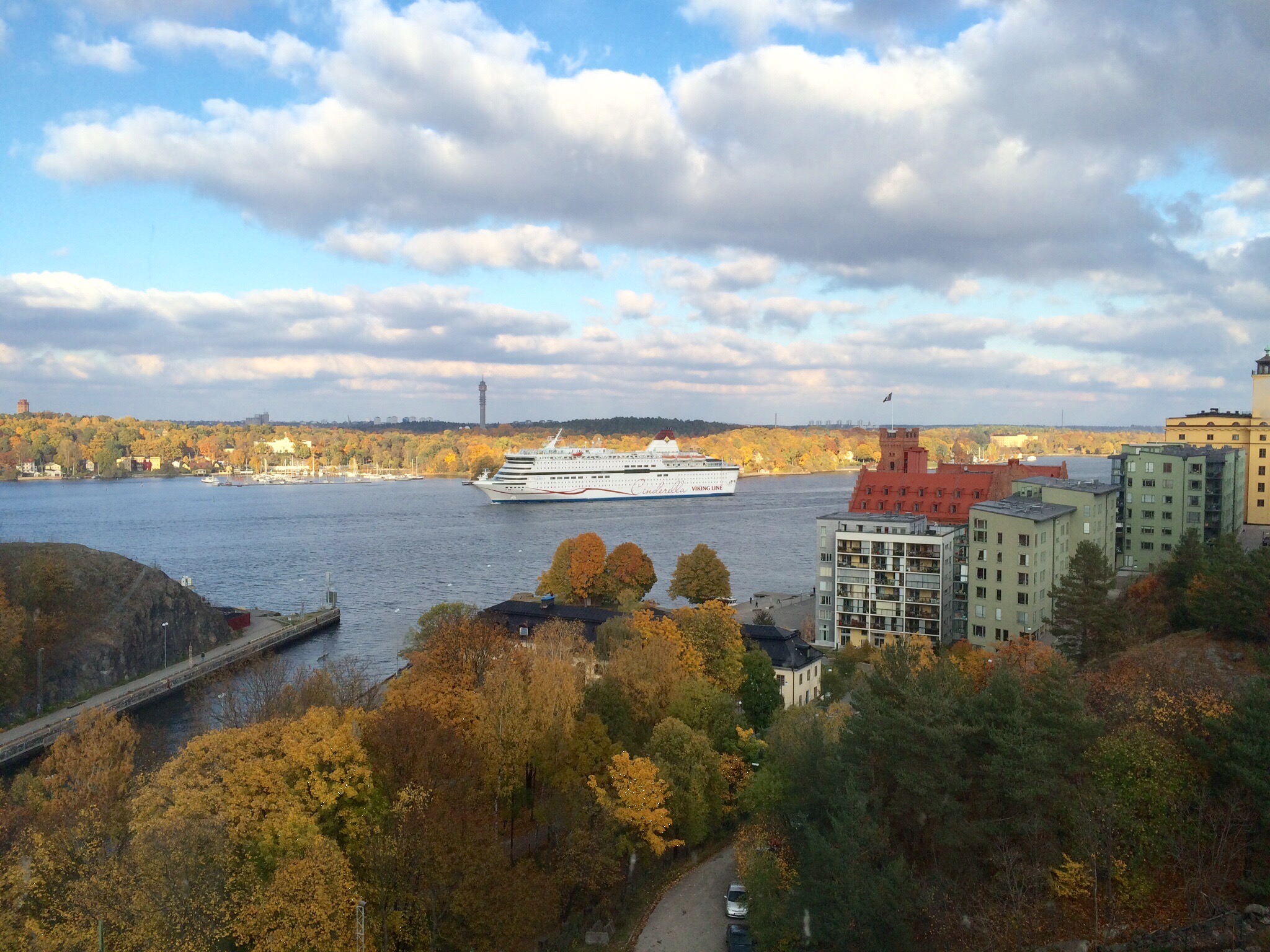 Hmm. That works ok I guess. Obviously they would all need to be the same orientation and size to begin with. Also, it didn’t like it when I tried to do this without lining each picture individually to the left. It tried to merge the pictures together into one and then started acting erratically when I tried to move them around. But over all this works pretty good. I am also curious what will happen if I use a small picture like this with alignment set to none. I wonder if the picture will move around to correctly align with the text. Let’s try it.
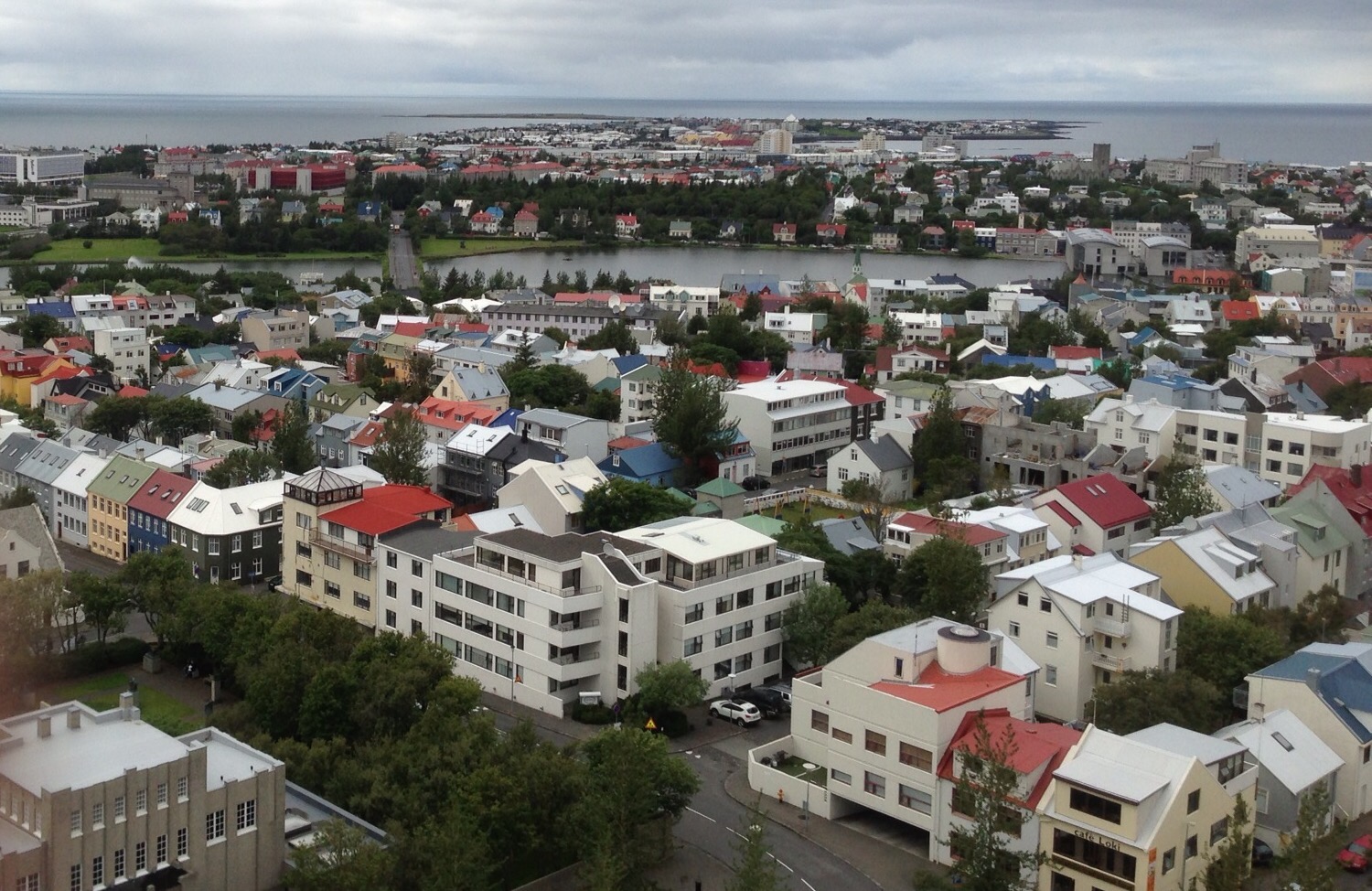 I am inserting dummy text to see what happens when we get to the bottom. I assume the text will resume its position on the left margin.
That was the only place it would let me enter text, so I think I would need to set the alignment to the left or right if I want to control the text and make it look better. There is one other option that I want to show you which is the large size as opposed to the original size. I think this will be very popular for me.
 So this is the large size with alignment set two left and it allows me to enter the text on the right.
And one final test would be this larger size pushing it to the right to see if I can add text to the left.
 Looks like it works pretty well. Let’s add some more text. I am inserting dummy text to see what happens when we get to the bottom. I assume the text will resume its position on the left margin. I am inserting dummy text to see what happens when we get to the bottom. I assume the text will resume its position on the left margin.
I suppose we could get really tricky and try to invent a picture right here on the way to the left to see what would happen.
 Wow, that is a beautiful thing! But now what will happen when the text reaches the bottom?
I am inserting dummy text to see what happens when we get to the bottom. I assume the text will resume its position on the left margin. I am inserting dummy text to see what happens when we get to the bottom. I assume the text will resume its position on the left margin. I am inserting dummy text to see what happens when we get to the bottom. I assume the text will resume its position on the left margin. I am inserting dummy text to see what happens when we get to the bottom. I assume the text will resume its position on the left margin.
Incredible. This app works so much better than the web it is just unbelievable. These folks should get some good recognition for this because I tried some of these things using the web interface and it was a disaster.
The final test here which I cannot do until after I have published is to see how this looks on other devices. I will check that and then update the post.
OK I haven’t tested the other devices yet but when I publish this I noticed there was a problem. Since I have the right-hand side bar employed for category selection it’s pushing everything to the left and messing up the format that I liked. I think I will try putting the category selection on the bottom instead of on the right since most of my posts will involve lots of pictures and I want to be able to have more options when I’m embedding the text.
OK that worked but it means I’ll have to live with the buttons on the bottom, and I also had to remove the social sharing buttons. I assume I can also re-locate these to the bottom but I didn’t try. Perhaps I should look at alternate themes. Anyway now I’ll go check other devices to see how this looks.
OK I checked some other devices and none of them looked as good as the app running on my iPad Air2. The devices I checked were an iPhone 5s running revision 8 of iOS, an old iPad also running revision 8, and PC laptop running the latest version of Windows. Bottom line here is none of them look as good when considering the format of the text around the pictures. So the thing to keep in mine would be to be careful with how we use these different size pictures with text around them. The other comment I have in this area is that on the PC and the older iPad, the smaller pictures looked really small. So I would be careful using that size picture for anything that had any amount of detail or beauty that you wanted if you were to observe. But also keep in mind that on all hardware I tested, if you click on the smaller pictures they rapidly display in full size. So when you speak with probably be as sort of a gallery to display a bunch of pictures for people could just click on the ones they were interested in.
I do like having the buttons at the bottom versus along the right-hand side. Since the buttons are only three rows it seems kind of a waste to have all that blank space reserved for those buttons all the way down the side of the page it would be different if they floated down as you scroll down but they don’t so I will probably keep them at the bottom or look for a different theme. If I decide on a different theme I’ll be back in here testing.
So those are pretty much all of the scenarios that I see myself needing to understand as I write an article off-line before posting. If I think of anything else or run across something that I’m not sure how it will work before publishing, I will come back to the site to test it.


 The Travelin' Man